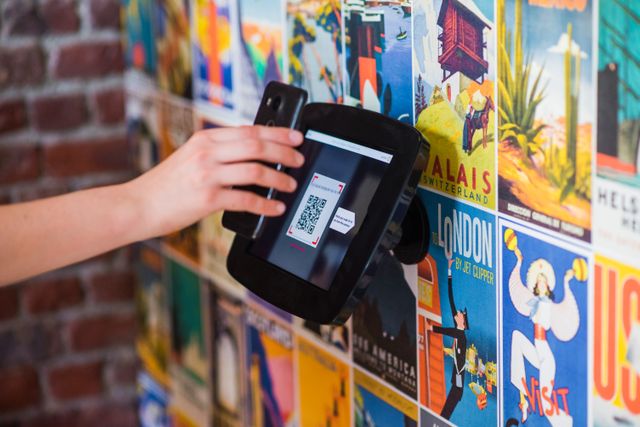
Learn how to create a custom Wi-Fi QR code to share guest network access instantly without manually typing passwords. Includes smartphone tricks and technical prepress standards.
Sharing Wi-Fi access with guests, customers, or visitors is a common everyday task, but typing long and complicated passwords can be inconvenient. A single mistake in entering a password can prevent someone from connecting, leading to unnecessary frustration.
A Wi-Fi QR code provides a simpler solution. By scanning a QR code with a smartphone camera, users can connect to a wireless network without manually entering the network name or password.
This technology is useful for homes, offices, restaurants, hotels, coworking spaces, and businesses that frequently provide internet access to visitors.
This guide explains how Wi-Fi QR codes work, how to create one, where to use them, and the best practices for sharing internet access securely.
Table of Contents
- What Is a Wi-Fi QR Code?
- How Wi-Fi QR Codes Work
- Benefits of Using Wi-Fi QR Codes
- How to Create a Wi-Fi QR Code
- How to Connect to Wi-Fi Using a QR Code
- Where to Use Wi-Fi QR Codes
- Security Considerations
- Common Mistakes to Avoid
- Best Practices for Wi-Fi QR Codes
- Frequently Asked Questions
What Is a Wi-Fi QR Code?
A Wi-Fi QR code is a special type of QR code that stores wireless network information. Instead of opening a website or displaying text, the code contains details needed for a device to connect to a Wi-Fi network.
A typical Wi-Fi QR code contains:
- Network name (SSID): The name of the Wi-Fi network.
- Password: The security key used to access the network.
- Encryption type: The security method used by the network, such as WPA or WPA2.
When someone scans the QR code with a compatible smartphone, the device can recognize the network information and offer to connect automatically.
How Wi-Fi QR Codes Work
Wi-Fi QR codes use a standardized format that smartphones can understand. Instead of requiring users to type information manually, the QR code transfers the connection details digitally.
The process is simple:
- A Wi-Fi QR code is created with the correct network information.
- A guest scans the QR code using their smartphone camera.
- The phone detects the Wi-Fi details.
- The user confirms the connection.
- The device joins the wireless network.
The main advantage is convenience. A visitor can connect in seconds without asking for a password or making typing mistakes.
Benefits of Using Wi-Fi QR Codes
Faster Guest Connections
Wi-Fi QR codes eliminate the need to read and type complicated passwords. This is especially useful when passwords contain a mixture of numbers, symbols, and uppercase letters.
Better Customer Experience
Businesses that offer guest Wi-Fi can make the connection process smoother. Restaurants, hotels, and waiting areas can provide internet access without requiring staff assistance.
Reduce Password Sharing Problems
Instead of repeatedly telling guests the password, businesses and homeowners can display a QR code in a convenient location.
Useful for Public Spaces
Wi-Fi QR codes work well in places where many people need temporary internet access.
Examples include:
- Cafes
- Restaurants
- Hotels
- Libraries
- Offices
- Events
- Guest rooms
Easy to Update
If the Wi-Fi password changes, a new QR code can be generated and replaced wherever the old one was displayed.
How to Create a Wi-Fi QR Code
Creating a Wi-Fi QR code only takes a few steps.
- Collect your Wi-Fi details. You need the exact network name, password, and security type.
- Choose a QR code generator. Select a tool that supports Wi-Fi QR codes.
- Enter your network information. Add the SSID, password, and encryption type carefully.
- Generate the QR code. The tool will create a QR code containing your Wi-Fi connection details.
- Test the QR code. Scan it using a smartphone before sharing it with others.
- Print or display the QR code. Place it where guests can easily access it.
If you need to create QR codes for Wi-Fi sharing, websites, businesses, or customer experiences, you can use our free QR Code Generator.
How to Connect to Wi-Fi Using a QR Code
The exact steps may vary slightly depending on the device, but the general process is straightforward.
On Android Devices
- Open the camera app or Wi-Fi settings.
- Scan the Wi-Fi QR code.
- Review the detected network information.
- Confirm the connection.
On iPhone Devices
- Open the Camera app.
- Point the camera at the Wi-Fi QR code.
- Tap the notification that appears.
- Confirm joining the network.
Most modern smartphones support QR-based Wi-Fi connections without requiring additional applications.
Where to Use Wi-Fi QR Codes
Homes
Place a Wi-Fi QR code near your router, entrance area, or guest room so visitors can connect easily.
Restaurants and Cafes
Businesses can place Wi-Fi QR codes on tables, menus, or signs to improve customer convenience.
Hotels and Accommodation
Guests can access internet details without contacting reception or searching through printed instructions.
Offices
Companies can provide guest network access in meeting rooms or reception areas.
Events and Conferences
Wi-Fi QR codes help attendees connect quickly in locations where many visitors need internet access at the same time.
Security Considerations
While Wi-Fi QR codes are convenient, they should be used thoughtfully. The QR code contains your Wi-Fi access information, so anyone who can access the code may be able to connect to the network.
Use Guest Networks When Possible
For businesses and public spaces, a separate guest Wi-Fi network is usually safer than sharing the main private network.
Be Careful Where You Display the Code
A Wi-Fi QR code displayed publicly should only provide access intended for visitors.
Update Passwords When Necessary
If unauthorized users gain access, changing the Wi-Fi password and creating a new QR code can restore control.
Avoid Sharing Sensitive Networks
Do not use public Wi-Fi QR codes for networks that contain sensitive business systems or private information.
Common Mistakes to Avoid
Entering Incorrect Network Information
A small mistake in the Wi-Fi name or password can prevent the QR code from working.
Forgetting the Security Type
The encryption setting must match the actual Wi-Fi network configuration.
Not Testing Before Sharing
Always test the QR code before printing or displaying it for guests.
Using the Main Private Network for Visitors
Businesses should consider using a separate guest network to improve security.
Printing QR Codes Too Small
A QR code that is difficult to scan creates unnecessary frustration. Make it large enough for comfortable scanning.
Best Practices for Wi-Fi QR Codes
- Use a clear label such as "Scan to Connect to Wi-Fi."
- Place the QR code where visitors can easily see it.
- Test the code with different smartphones.
- Use a guest network for public access.
- Keep the printed code clean and undamaged.
- Update the QR code whenever Wi-Fi details change.
- Provide backup connection instructions if needed.
Summary
Wi-Fi QR codes make internet sharing faster and more convenient by removing the need for manual password entry. They are useful for homes, businesses, restaurants, hotels, and public spaces where quick connectivity improves the user experience.
Creating a Wi-Fi QR code is simple: enter your network details, generate the code, test it, and display it where users can easily scan it.
For the best results, combine convenience with security. Use guest networks when possible, protect private connections, and regularly review who has access to your Wi-Fi.
Frequently Asked Questions
1. Is a Wi-Fi QR code safe to use?
Yes, Wi-Fi QR codes are generally safe when used properly. However, anyone who can access the QR code may be able to connect to the network, so use them carefully.
2. Can I create a QR code for my home Wi-Fi?
Yes. Homeowners can create Wi-Fi QR codes to make it easier for family members and guests to connect without typing the password.
3. Do Wi-Fi QR codes work on all smartphones?
Most modern Android and iPhone devices support scanning QR codes for Wi-Fi connections, although features may vary depending on the operating system version.
4. What information is stored inside a Wi-Fi QR code?
A Wi-Fi QR code usually stores the network name, password, and security type needed to connect to the wireless network.
5. Can I change my Wi-Fi password after creating a QR code?
Yes, but the existing QR code will stop working. You will need to create a new QR code with the updated password.
6. Where should I place a Wi-Fi QR code?
Common locations include guest rooms, reception desks, restaurant tables, offices, event areas, and near home routers.
7. Can businesses use Wi-Fi QR codes for customers?
Yes. Many businesses use them to provide faster guest access while improving customer experience and reducing staff support requests.