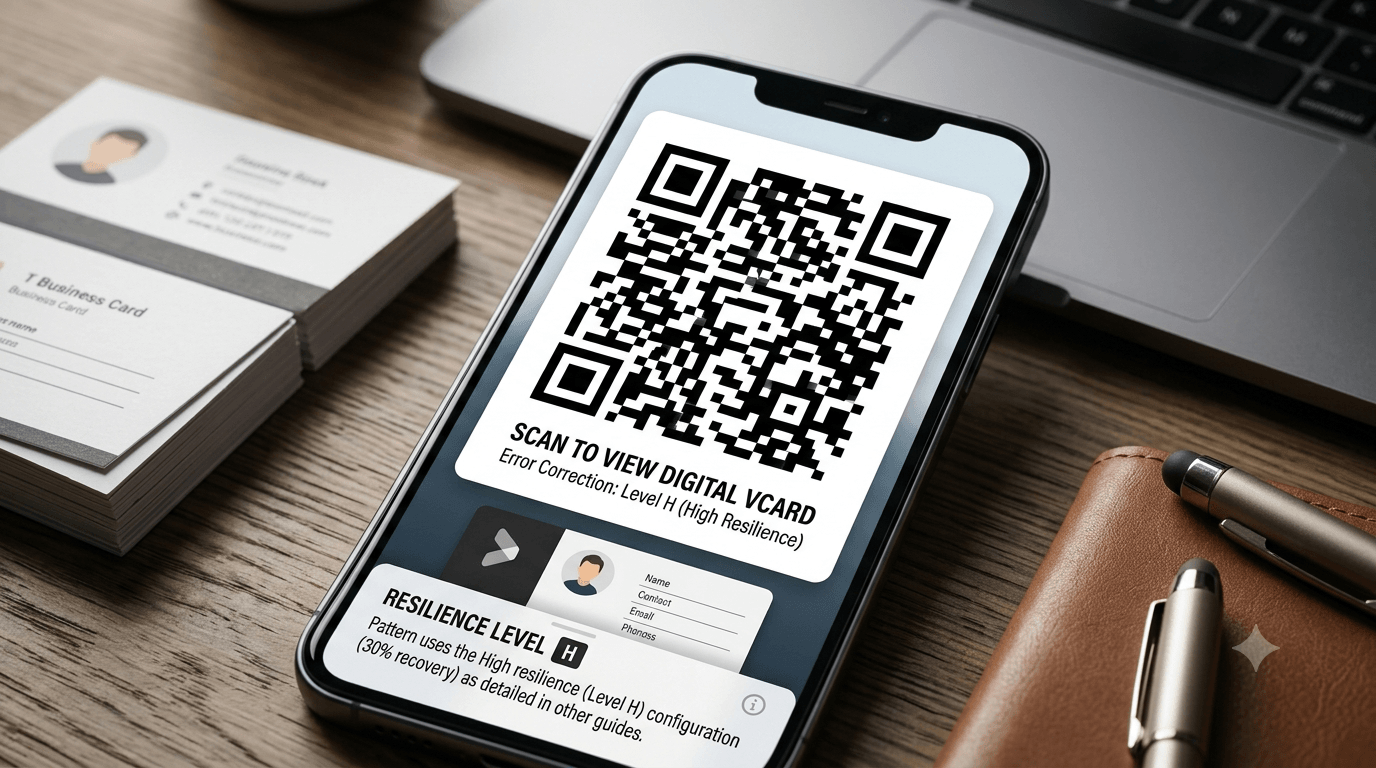
Learn how to create a dynamic digital business card QR code (vCard) that allows contacts to instantly save your phone number, email, address, and social links to their smartphone.
Traditional business cards are still widely used, but the way people exchange contact information is changing. Instead of manually typing names, phone numbers, email addresses, and company details into a phone, professionals can now share their information instantly with a digital vCard QR code.
A digital vCard QR code allows someone to scan a code using a smartphone and quickly save your contact details. It creates a smoother networking experience while reducing the need for paper-based contact sharing.
For entrepreneurs, sales professionals, freelancers, business owners, and employees, a vCard QR code can turn a simple business card into an interactive digital connection point.
This guide explains what a digital vCard QR code is, how it works, how to create one, where to use it, and the best practices for making a professional digital business card experience.
Table of Contents
- What Is a Digital vCard QR Code?
- How vCard QR Codes Work
- Benefits of Using a vCard QR Code
- Information You Can Include in a Digital vCard
- How to Create a Digital vCard QR Code
- How to Use vCard QR Codes on Business Cards
- Best Places to Use Digital vCard QR Codes
- Common Mistakes to Avoid
- Best Practices for Professional vCard QR Codes
- Frequently Asked Questions
What Is a Digital vCard QR Code?
A digital vCard QR code is a QR code that contains electronic contact information. When scanned, it allows users to save your details directly to their smartphone contacts.
Unlike a traditional business card that only displays information visually, a digital vCard QR code creates an interactive experience.
A typical digital vCard may include:
- Full name
- Job title
- Company name
- Phone number
- Email address
- Website URL
- Business address
- Social media profiles
- Professional profile links
- Company logo
Instead of asking someone to manually enter your details, they can scan once and save your contact information immediately.
How vCard QR Codes Work
A vCard QR code works by storing contact information in a format that smartphones can recognize.
The process is simple:
- You create a digital vCard containing your contact details.
- The information is converted into a QR code.
- The QR code is added to your business card or digital profile.
- A person scans the code with their smartphone.
- Their device displays your contact information and allows them to save it.
The QR code acts as a bridge between your physical business card and your digital identity.
Benefits of Using a vCard QR Code
Faster Contact Sharing
Networking events often involve exchanging multiple business cards quickly. A vCard QR code reduces the time needed to enter contact information manually.
A potential client can scan your code, save your details, and continue the conversation without interrupting the interaction.
Reduces Typing Errors
Manually entering phone numbers or email addresses can lead to mistakes. A single incorrect character can prevent someone from reaching you.
Digital contact sharing transfers information accurately and reduces common data entry errors.
Creates a More Modern Brand Image
A QR-enabled business card shows that your business uses practical digital tools to improve customer experiences.
This can be especially valuable for professionals in industries such as:
- Real estate
- Consulting
- Technology
- Marketing
- Sales
- Design
- Entrepreneurship
Easy to Update Digital Information
Traditional business cards become outdated when phone numbers, job titles, websites, or company details change.
A digital vCard can be updated more easily, helping maintain accurate contact information over time.
Supports Eco-Friendly Networking
Digital contact sharing reduces dependence on printed cards. While physical business cards remain useful, combining them with digital options gives people more flexibility.
Information You Can Include in a Digital vCard
A professional digital vCard should include the information that helps people understand who you are and how they can contact you.
Recommended details include:
- Name: Your full professional name.
- Role: Your position or area of expertise.
- Company: The organization you represent.
- Phone: A direct contact number.
- Email: Your professional email address.
- Website: Your main online presence.
- Social profiles: Relevant professional networks.
Avoid adding unnecessary information that makes your contact profile difficult to read or maintain.
How to Create a Digital vCard QR Code
Creating a digital vCard QR code involves preparing your contact details and converting them into a scannable format.
-
Prepare your contact information.
Collect the details you want to share, including your name, company, phone number, email, and website.
-
Choose a vCard QR code generator.
Select a tool that supports digital contact cards.
-
Add your information.
Enter your details carefully and check for spelling mistakes.
-
Generate the QR code.
The tool will create a QR code containing your digital contact information.
-
Test the QR code.
Scan it using different smartphones to confirm that the information appears correctly.
-
Add it to your business materials.
Place the QR code on your business card, email signature, presentations, or marketing materials.
If you need to create a QR code for a digital business card, contact sharing, websites, or professional networking, you can use our free QR Code Generator.
How to Use vCard QR Codes on Business Cards
A QR code should complement your business card design rather than overwhelm it.
Consider including:
- A clear instruction such as “Scan to Save Contact.”
- A QR code size that is easy to scan.
- A clean area around the QR code.
- A professional design that matches your brand.
The QR code should be large enough for smartphone cameras to recognize it easily. Avoid placing it near busy graphics or text that could reduce readability.
Best Places to Use Digital vCard QR Codes
Business Cards
The most common use is adding a QR code to printed business cards. This combines traditional networking with digital convenience.
Email Signatures
A vCard QR code in an email signature allows recipients to save your information without searching through previous messages.
Networking Events
At conferences, trade shows, and meetings, QR codes make contact exchange faster and more efficient.
Presentations
Speakers can add a vCard QR code to presentation slides so attendees can save contact details easily.
Marketing Materials
Brochures, flyers, and promotional materials can include a digital contact option for interested customers.
Common Mistakes to Avoid
Adding Incorrect Contact Information
A QR code containing outdated or incorrect details creates a poor professional impression. Always review your information before publishing.
Making the QR Code Too Small
A tiny QR code may look better visually, but it can become difficult for users to scan.
Over-Designing the QR Code
Adding too many colors, patterns, or decorative elements can affect scanning reliability.
Not Testing Before Printing
Always scan the final version before printing hundreds of business cards.
Including Too Much Information
A digital vCard should focus on useful contact details. Avoid filling it with unnecessary information that users do not need.
Best Practices for Professional vCard QR Codes
- Keep contact information accurate and updated.
- Use a clear call-to-action near the QR code.
- Maintain strong contrast between the QR code and background.
- Test on both Android and iPhone devices.
- Use professional contact details.
- Make the QR code easy to find on printed materials.
- Protect the QR code from distortion during printing.
Example Call-to-Action Text
- Scan to Save My Contact
- Scan to Add Me to Your Contacts
- Scan for Digital Business Card
- Scan to Connect
Summary
A digital vCard QR code transforms a traditional business card into a smarter networking tool. It allows professionals to share contact details instantly, reduce typing errors, and create a smoother connection experience.
Creating one is simple: prepare your contact information, generate the QR code, test it, and add it to your business materials.
For modern professionals, a QR-enabled business card offers a practical way to combine offline networking with digital convenience.
Frequently Asked Questions
1. What is a vCard QR code?
A vCard QR code is a QR code that stores digital contact information and allows users to save details directly to their smartphone contacts.
2. Can a vCard QR code replace a business card?
It can reduce the need for traditional cards, but many professionals still use both. A printed business card with a QR code provides flexibility for different situations.
3. What information should be included in a digital vCard?
Most digital vCards include a name, job title, company, phone number, email address, website, and relevant professional links.
4. Do vCard QR codes work on iPhone and Android?
Most modern smartphones can scan QR codes and recognize digital contact information, although the exact saving process may vary between devices.
5. Can I update my information after creating a vCard QR code?
It depends on how the QR code was created. Some solutions allow updates through a digital profile, while others require generating a new QR code.
6. Is a vCard QR code secure?
Yes, but only share information you are comfortable providing. Anyone who scans the code can view the contact details stored inside it.
7. Where should I place a vCard QR code?
Common locations include business cards, email signatures, presentations, websites, brochures, and professional networking materials.